



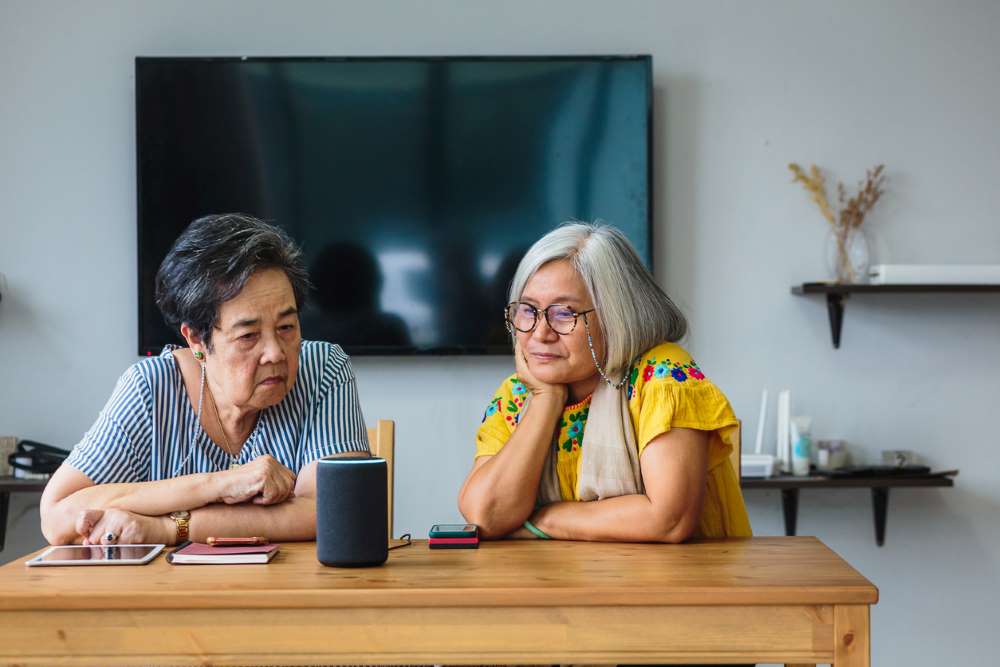
There’s a high chance that you have already heard about Alexa since it has been on trend and reviewed by a lot of tech experts around the globe. Video reviews online are widespread, and you can also find a ton of blogs from different websites.
So, what is Alexa? Alexa is a virtual assistant AI technology developed by Amazon that was released in November 2014. It was first installed in a hands-free speaker Amazon Echo that is particularly controlled by your voice. Yes, this simply means Alexa is a voice-controlled personal assistant.
Aside from Amazon Echo, Alexa is also available on a variety of third-party devices such as speakers and even television through the Alexa app. Or if you want better sound quality, you could achieve that with an Alexa soundbar.
Since Alexa serves as a personal virtual assistant there are a lot of things it could do. It could be able to play your favorite music first thing in the morning, it could provide you current events and sports news as well as weather updates. But that doesn’t stop there, Alexa could also control your smart home and you can ask her hundreds or thousands of questions. Amazing right? All of this, using a voice control assistant!
To begin, you need to set up Alexa into your chosen device. Here are the following steps to guide you.
1. Download the Alexa App
Alexa is a free application that you can download on App Store if you are an Apple user or at Play Store if you’re an Android user. However, make sure that you have the qualified software updates for this application to work. Lastly, if you want to download this on your desktop just visit the Amazon Alexa website and follow their instructions.
2. Plug in your Echo
For everything to be possible, you should not forget the most important yet easiest step, plugging in this device. Since it doesn't have batteries you will directly plug the power adapter included in the package and connect it to a power outlet. If the light ring turns blue it simply means that it is connected successfully. Wait for a moment until it turns orange and Alexa prepares to greet you. And finally, you’ll hear Alexa saying that your device is ready for set up.
3. Connect the Echo to your wireless network using the application
Open up the Alexa app and search your personal network. Once you are connected you can either save your Wi-Fi password to Amazon so it will be much easier to connect to other smart home devices.
4. Alexa is now activated
The first thing you would say is “Alexa” since it is set as default. However, you also have the option to change the wake word. Just simply command the Echo, “Alexa, change the wake word” to customize.
5. You can now start using your device.
Start with a few simple and basic commands just to make sure that everything is working properly. Begin by saying “Hello.” If it is properly set, it should respond “Hello” as well.
If you want to check out what Alexa is capable of, simply go to the Alexa app menu and select the Skills & Games or Things to Try section. In these sections, you could be able to customize Alexa.
After these steps, you are good to go and you could now start using this device for a variety of tasks that will make your life so much easier.
This application installed on your devices is truly an upgrade. Having a voice control personal assistant takes you to a whole different level. It will truly make your life easier and convenient with the tasks that it can do on your behalf.